Before you begin
The slicer preview is a rehearsal of the instructions your printer will follow. A smooth solid model can hide an unprintably thin wall, a region that starts in empty space, or a hole that vanishes during repair. Reading the toolpaths lets you catch those problems while the cost of changing the design is still a few clicks.
Use the preview in a consistent order: verify the setup, check the bottom, follow important features through their height, inspect the transitions, and review the final output. You do not have to examine every line of every ordinary object. Learn where your design changes character, because those transitions are where useful evidence often appears.
Establish what you are looking at
Confirm the printer, installed nozzle, material, and print profile before interpreting colors or estimates. A different nozzle selection can change whether a thin feature is generated. A material profile can change speeds and cooling. An imported project may carry settings from its creator, so do not assume your usual configuration survived opening it.
Read the preview legend. Colors may describe feature types, speed, layer height, or another quantity depending on the selected view. A red region is not automatically a fault. First ask what the color represents, then whether the value or feature makes sense for your print. Use a simple feature-type view to distinguish walls, infill, supports, and travel before exploring more specialized displays.
Check dimensions numerically. If your intended 80 mm bracket arrives at 8 mm, even a visually convincing preview is describing the wrong object. Correct the scale and slice again before assessing holes or text.
Read the first layer as the foundation
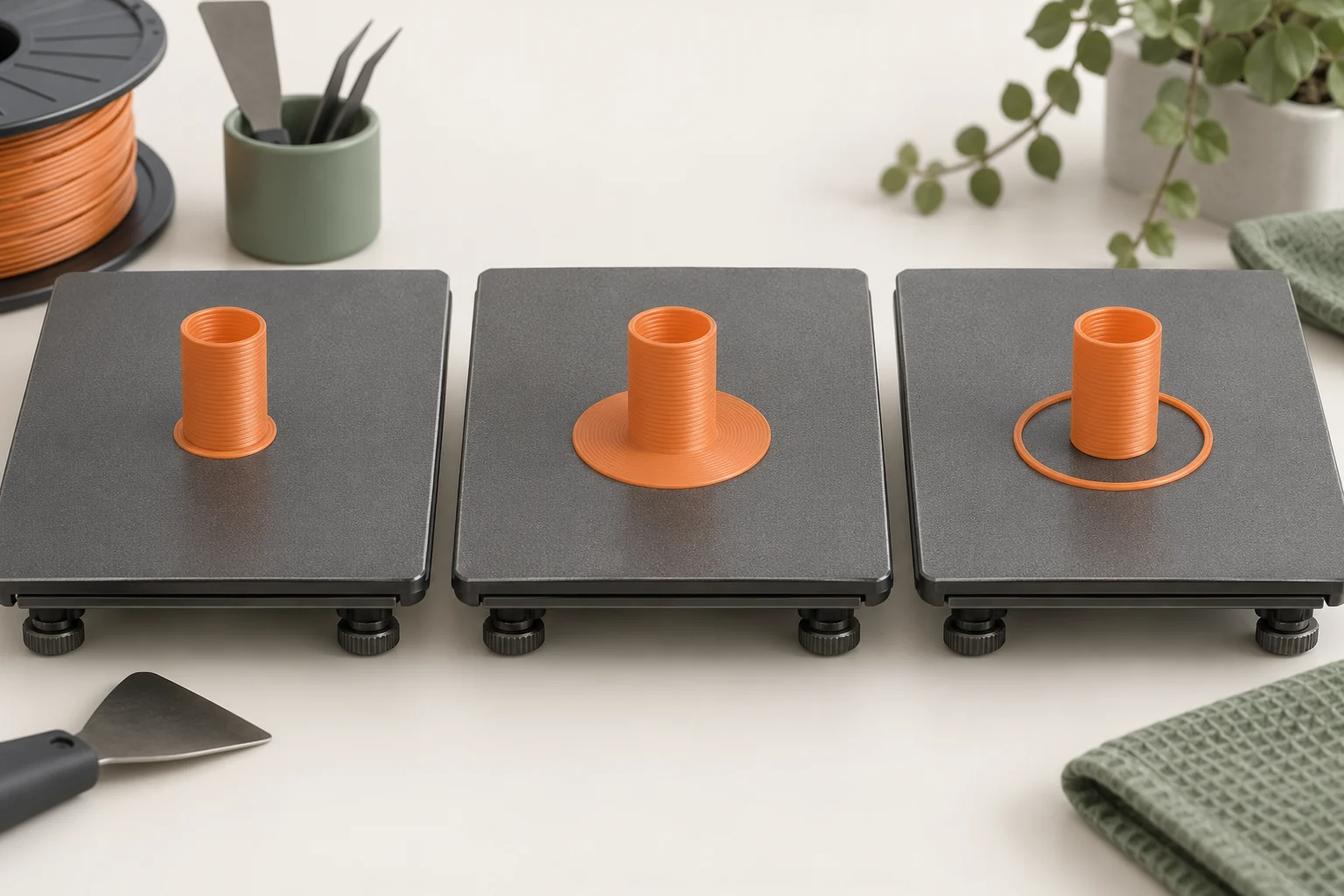
Lower the layer slider to the start of the object. Confirm that the expected face contacts the bed and that separate feet are present where you intended them. A model that seems flat in solid view may rest on a small edge, leaving a surprisingly small contact region. That is a geometry and orientation question before it is an adhesion question.
Distinguish the object footprint from auxiliary structures. A skirt surrounds a part without adding the same attached footprint as a brim; supports have their own bases. Count the separate regions that must stick. A wide central body does not help an isolated narrow support tower if that tower has a poor base.
For a small tray, the bottom should resemble the planned floor outline. If you see only a narrow strip, stop and compare the orientation and first occupied layers. Do not export simply because the overall three-dimensional preview looks recognizable.
Follow one feature from bottom to top
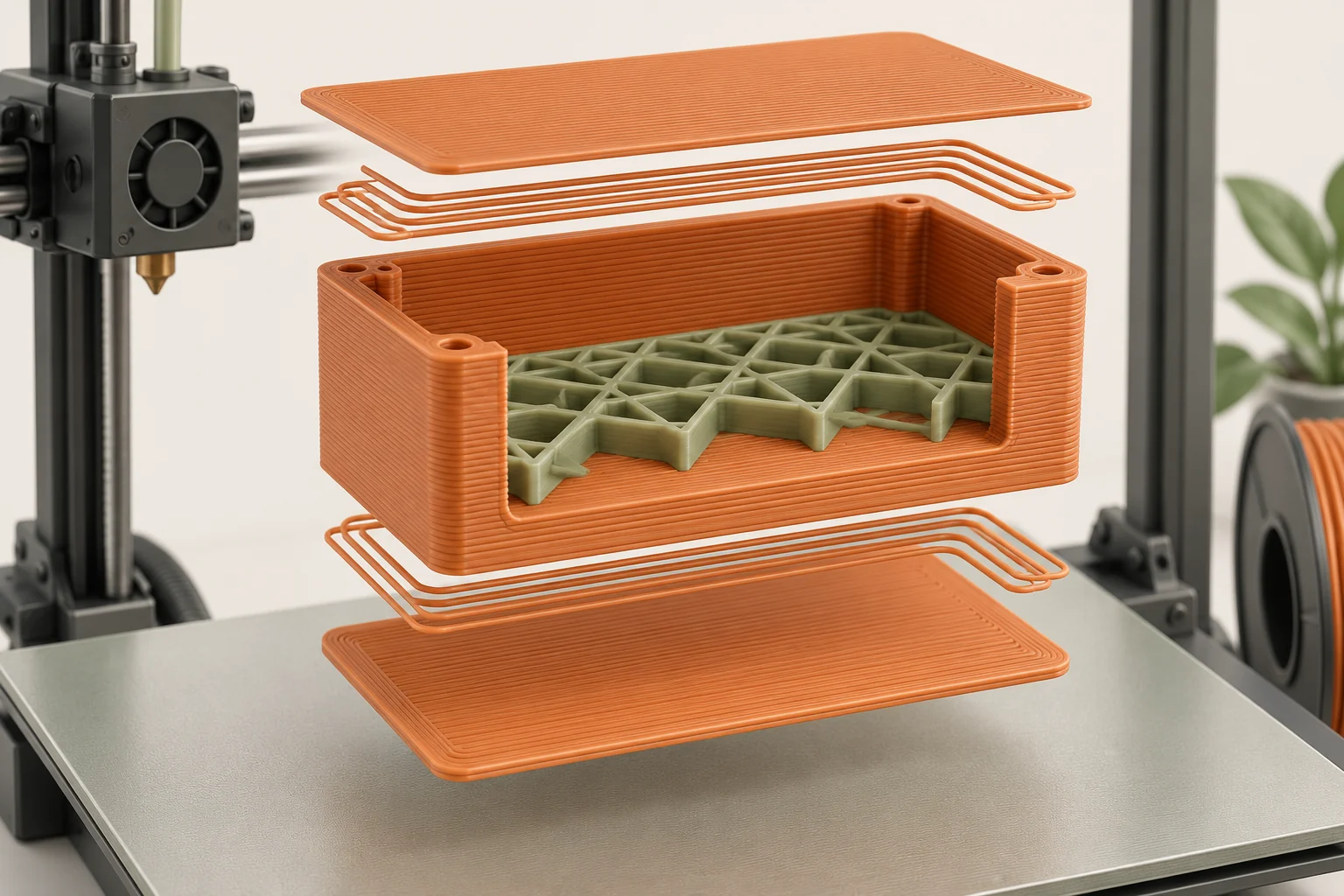
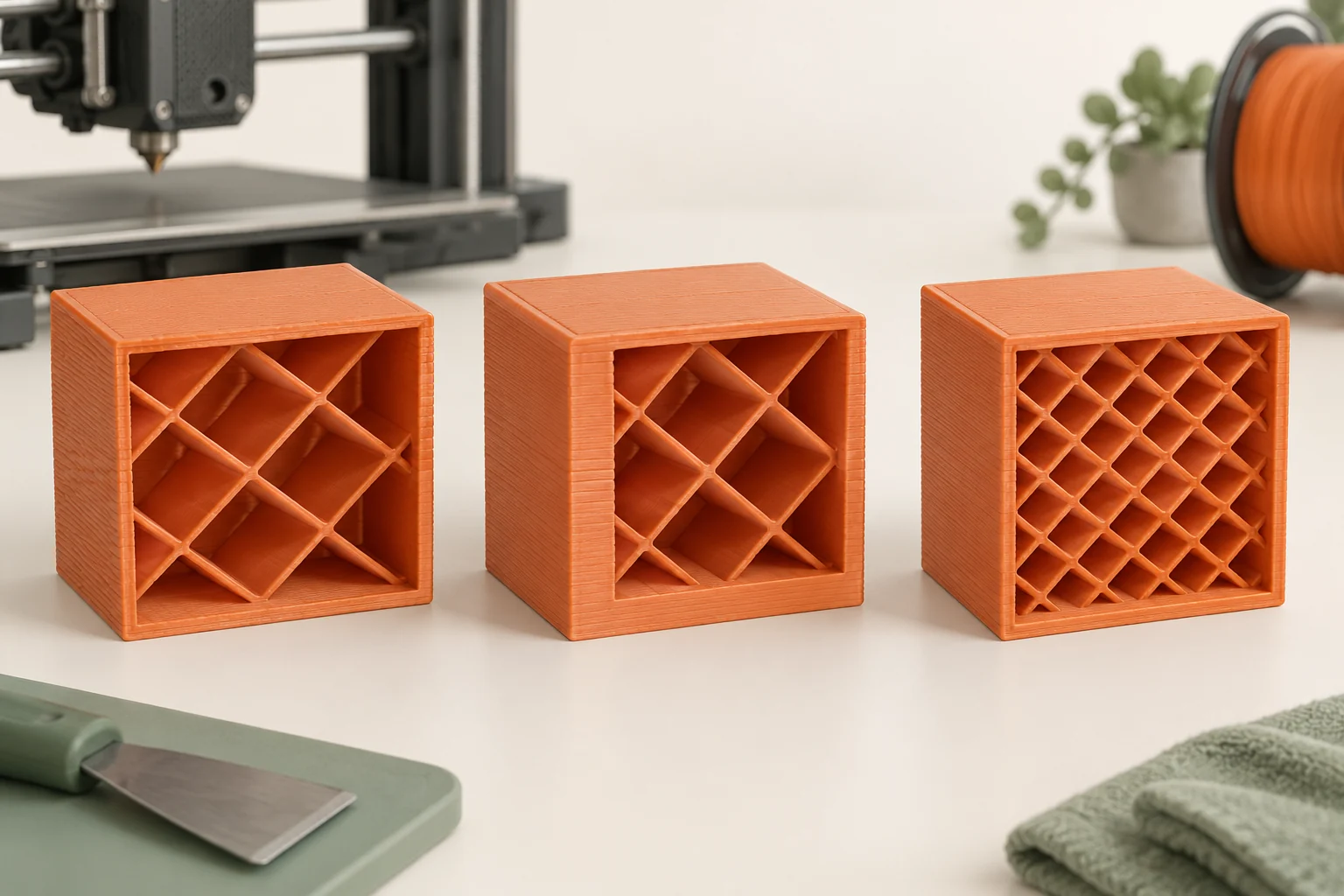
Choose a critical feature such as a hole, a wall, or a raised label and trace it through successive layers. A vertical hole should retain the intended opening where the design requires one. A thin wall may change from two paths to one, or disappear, as its geometry changes. Those transitions explain what material will actually exist.
Suppose a nameplate contains a narrow letter stroke. If the stroke is visible in the solid model but no extrusion path appears at its height, the machine has no instruction to print it. Consider enlarging the text, changing the stroke geometry, or using a compatible smaller-nozzle setup. Lowering the layer height alone does not directly make a nozzle draw narrower lines in the horizontal plane.
Check both negative and positive features. It is easy to notice a missing peg while overlooking a filled slot. For a part that must mate with another component, preserve the actual interface geometry in your preview review rather than judging only the outside silhouette.
Find transitions, bridges, and unsupported starts
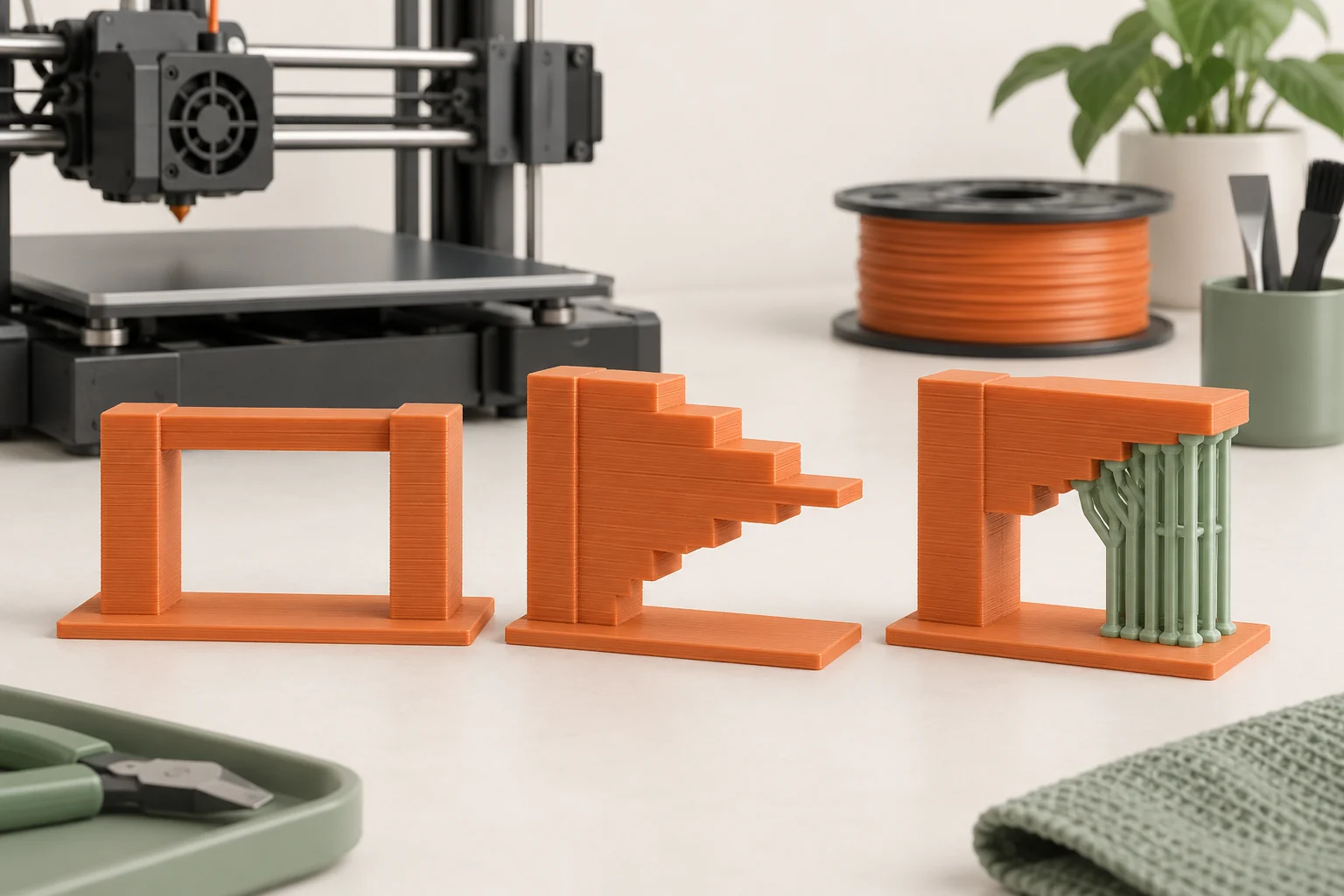
Pause wherever a new region appears: the underside of a roof, the beginning of an arm, the first layer above a cavity, or the top of an internal support. Compare that layer with the one immediately below. Ask what will physically support each new line. Some paths bridge between anchors; others extend progressively from existing material; an isolated island has neither.
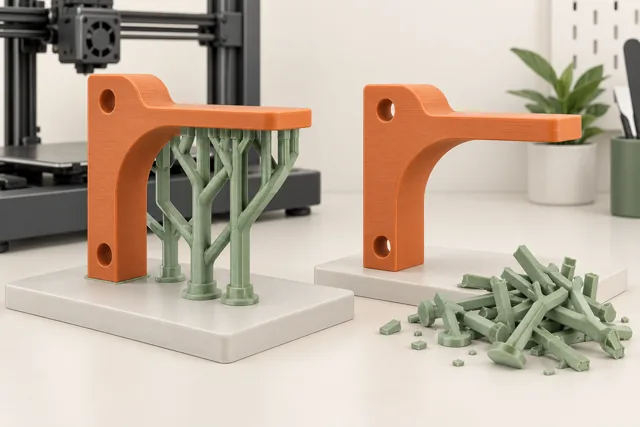
Imagine a bracket with a horizontal ledge halfway up. Below the ledge, the preview contains only the upright wall. At the ledge's first layer, a large area suddenly extends outward. Check whether support reaches that underside or whether a different orientation would remove the problem. If you choose build-plate-only supports, confirm that the route from plate to ledge actually exists.
Previewing reveals the planned support, not whether the real material will bridge a particular distance cleanly. Use a representative test when the outcome depends on your machine and material. Treat unsupported-feature warnings as prompts to inspect, not as substitutes for that inspection.
| Preview observation | Likely next action |
|---|---|
| New isolated region appears with nothing below | Add suitable support, reorient, or redesign |
| Feature is missing before printing | Inspect dimensions and slicing geometry |
| Opening closes after mesh repair | Compare with the original model and repair deliberately |
| Large top surface spans sparse interior | Review the top closure and its support |
Treat mesh repair as an edit you must review
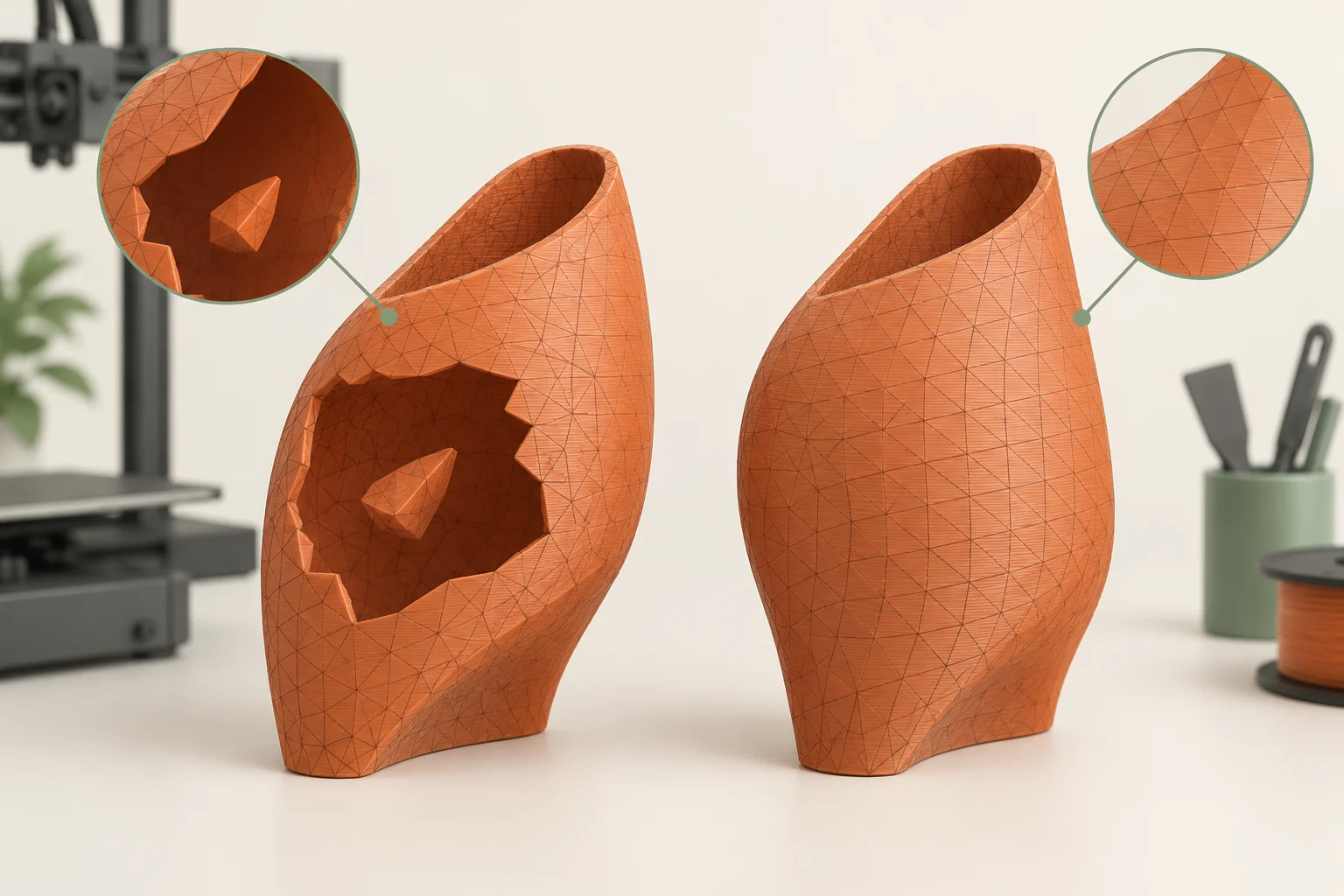
Meshes describe surfaces and can contain holes, overlapping faces, or inconsistent geometry. Repair tools can make a file slice, but a completed repair does not prove that the intended shape survived. Keep an untouched version. Compare important passages, internal cavities, and thin features between the original solid view and the repaired toolpaths.
If you have the editable CAD model, correcting its geometry can be easier to maintain than repeatedly repairing each export. Re-export, then inspect the same critical locations again. If only a downloaded mesh is available, document what changed so a future revision does not silently reintroduce the problem.
A useful review note is 'the repaired file kept both cable openings and the mounting slot.' 'Repair succeeded' only describes the tool's status. Your acceptance check should describe the part you meant to manufacture.
Save an export that you can reproduce
Before exporting, check the machine and material selections again and look at the estimates. Treat time and material as planning numbers, not exact promises. An unexpectedly large estimate is a reason to inspect scale, copies, supports, and settings; it is not automatically a reason to increase speed.
Save the project and give the output a recognizable revision. For example, keep a project labeled with the tray revision, nozzle, and material alongside the instructions generated from it. A clear name helps you avoid running yesterday's file after changing today's model. Re-slice after a geometry or settings change; the previous preview and output do not update by intention alone.
After printing, compare the actual result with this preview. If a feature was present in the instructions but failed physically, move to execution checks. If it was absent in both, return to design and slicing. That simple split makes troubleshooting much more efficient.
Common questions
Does a good preview guarantee a good print?
No. It checks the manufacturing plan, not plate condition, filament feeding, cooling, or mechanical behavior. A correct preview eliminates one group of causes and gives you a better basis for diagnosing the rest.
Must I inspect every layer individually?
Focus on the first layer, critical interfaces, newly appearing regions, and top closures. Scrub between those points to catch unexpected changes. Complex internal geometry deserves a more thorough pass than a simple solid block.
Why did a model become worse after automatic repair?
A repair can resolve an invalid mesh by interpreting ambiguous surfaces differently from your intent. Compare the result with the original, preserve a copy, and correct the source geometry where possible.
Continue with the sources
- PrusaSlicer General info Prusa Research · Checked 2026-10-15
- Corrupted 3D models for printing Prusa Research · Checked 2026-10-15
- Modeling with 3D printing in mind Prusa Research · Checked 2026-10-15
- First print with PrusaSlicer (2.9) Prusa Research · Checked 2026-10-15
- Layers and perimeters Prusa Research · Checked 2026-10-15
- Support material Prusa Research · Checked 2026-10-15
This guide synthesizes the cited references and includes illustrative examples, not hands-on test results. Follow the instructions for your exact printer, material, and software version. Generated illustrations simplify geometry and equipment; they are not photographs, measured results, or model-specific setup instructions.